pgAdmin as Web Admin Tool
If you followed the self-hosting setup for Infisical, you’ll notice it runs its own Postgres database.
Although direct access is rarely required, you might occasionally need to make changes.
Instead of connecting through the Docker container shell, it’s more convenient to use pgAdmin,
a web-based database management tool that you can expose via a subdomain for example.
pgAdmin Docker compose
name: pgadmin

services:

  pgadmin:
    image: dpage/pgadmin4:latest
    container_name: pgadmin
    env_file: .env
    restart: on-failure
    environment:
      PGADMIN_DEFAULT_EMAIL: ${PGADMIN_DEFAULT_EMAIL:-}
      PGADMIN_DEFAULT_PASSWORD: ${PGADMIN_DEFAULT_PASSWORD:-}
    ports:
      - "5050:80"
    volumes:
      - pgadmin_data:/var/lib/pgadmin
    networks:
      - infiscal_infisical


volumes:
  pgadmin_data:

networks:
  infiscal_infisical:
external: trueIf you run containers with a database, you want to access you need to add them in your pgAdmin docker-compose.yml file.
You can do this by adding them to the network section of the service and networks section at the bottom. Make sure to set external to true
when adding other networks
To find your network, run docker network ls or show in your config file to get the name.
pgAdmin secrets
You can use a .env file or follow the secrets setup for Infisical.
PGADMIN_DEFAULT_EMAIL=<your_email-to-login-with>
PGADMIN_DEFAULT_PASSWORD=<your_password>
Access pgAdmin
When your container is running, you can access it at http://<your_domain>:5050. (You can change the port mapping as needed)
In the Web interface you can login with the credentials you set in the .env file.
Register a database
To add a database to your pgAdmin panel, you need to register a new server.
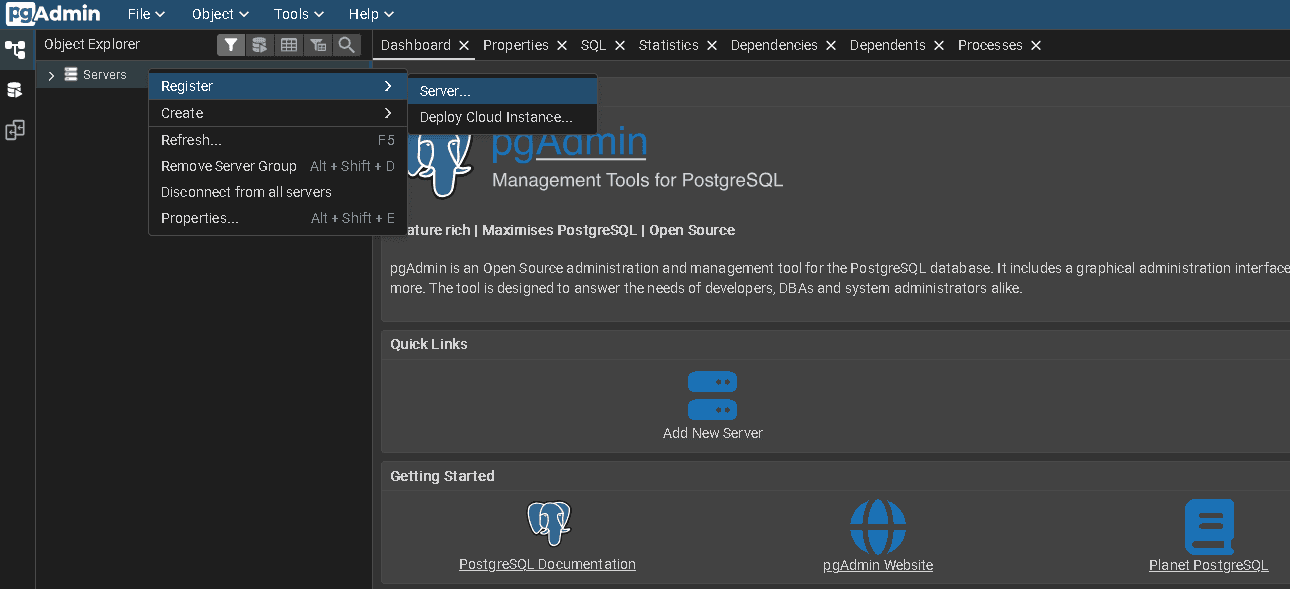
You can do this by right clicking the Servers label and select Register < Server in the top left corner.
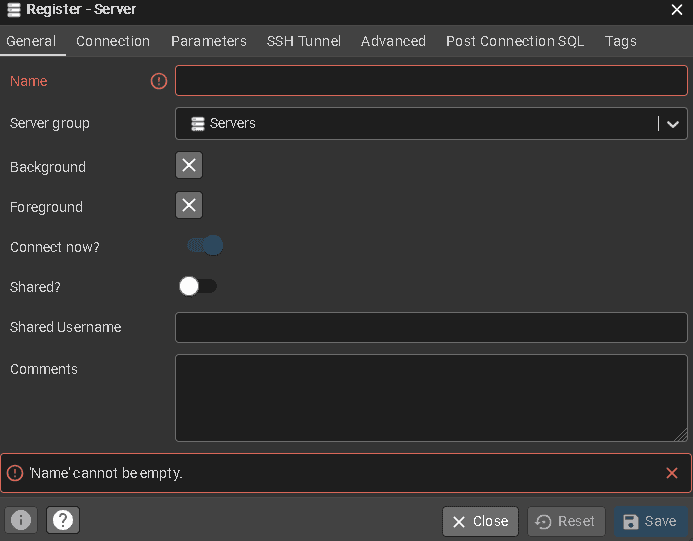
Now under the General tab, enter a name for your server:`
Under the Connection tab, enter your database credentials:
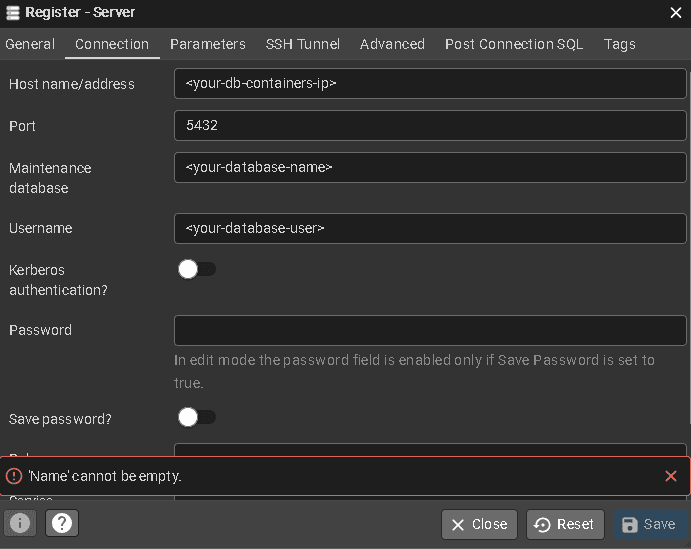
To find your database container ip, run docker ps to get your database container name
Then run:
docker inspect -f '{{range.NetworkSettings.Networks}}{{.IPAddress}}{{end}}' <your-db-container-name>To get your database container ip address inside it’s network. This should look something like this 172.xxx.xx.xxx
And don’t forget to enter your specific port shown under PORTS in the docker ps output.
Run commands inside your database
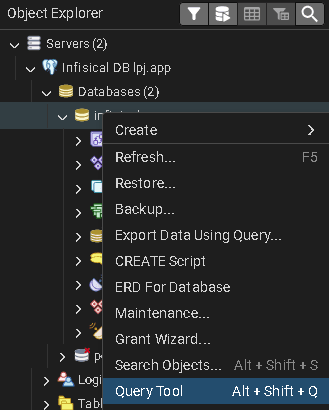
You can run SQL commands inside your database by clicking the Query Tool button when right clicking your database in the Servers overview.
Created: 20.10.2025
Last Updated: 20.10.2025